> For the complete documentation index, see [llms.txt](https://server-side.docs.sirdata.net/sirdata-server-side/llms.txt). Markdown versions of documentation pages are available by appending `.md` to page URLs; this page is available as [Markdown](https://server-side.docs.sirdata.net/sirdata-server-side/english-1/f.a.q-server-side/google-ads/google-ads-understanding-errors-and-warnings.md).
# Google Ads - Understanding Errors and Warnings
This guide details how the three critical conversion tracking components work, their typical errors and how to fix them: Enhanced Conversions, Cart Data, and Consent Mode.
***
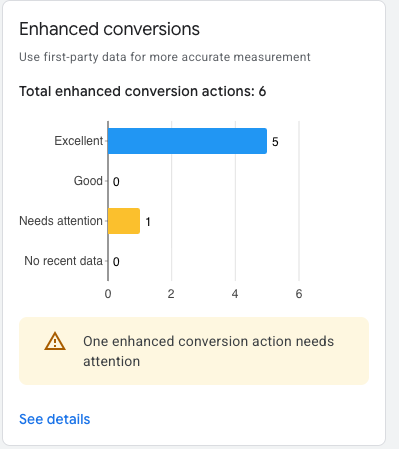
### 1. Enhanced Conversions
#### Definition
Enhanced conversions allow you to send first-party data — such as email address, name or phone number — securely (hashed using the SHA256 algorithm) to Google.
#### Technical Operation
When a user converts, the tags capture this data from the form fields or the `dataLayer`, encrypt it, and transmit it to Google to match it with a Google user account.
#### Common Errors & Causes
* Unhashed data: Sending the email in plain text (blocked by Google for privacy reasons).
* Unstable CSS selectors: If you use automatic capture, a site design change can break the link with the form field.
* Null JavaScript variables: The data is sent before the user has finished filling in the form or before the thank-you page has loaded.
#### Verification method
* Tag Assistant: Check that the `conversion` event contains the `enhanced_conversion_data` object.
* Console: Inspect the Network tab to see whether the `em` (email) or `ph` (phone) parameters are present in the `/conversions` request.
***
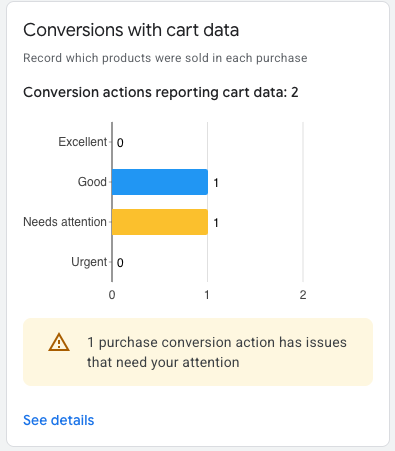
### 2. Conversions with Cart Data
#### Definition
This data layer transmits the granular details of the transaction: product IDs, quantities, unit prices and categories. It powers the profit and cross-sell reports.
#### Technical Operation
The conversion tag must include an `items` array following Google's standard schema (similar to that of GA4).
#### Common Errors & Causes
* ID Mismatch: The product ID sent by the tag (`item_id`) does not match the ID configured in the Google Merchant Center feed.
* Price format: Using commas instead of periods, or including the currency symbol (€) in a numeric variable.
* Missing data: The `items` array is empty when the conversion tag is called.
#### Business Impact
Without this data, Google cannot optimize your Performance Max or Shopping campaigns for actual profitability (gross margin), only for gross revenue.
***
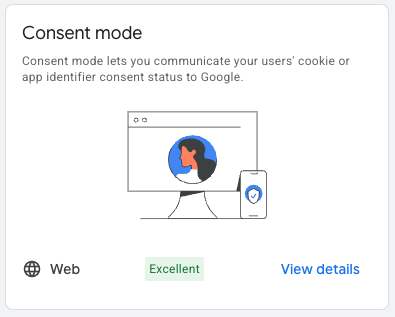
### 3. Consent Mode (Consent Mode V2)
#### Definition
Consent Mode is a communication mechanism between your cookie banner (CMP) and Google tags. It indicates whether the user has accepted or refused advertising tracking.
#### Technical Operation
It relies on two main signals introduced with V2 (mandatory in Europe since 2024):
1. `ad_user_data`: Permission to send user data to Google.
2. `ad_personalization`: Permission for remarketing.
#### Common Errors & Causes
* "Basic" vs "Advanced" status: Tags are blocked even before consent, preventing conversion modeling.
* Loading order: The `gtag('consent', 'default', ...)` command is called *after* the conversion tag has loaded.
* Missing signals: The cookie banner has not been updated to send the new V2 parameters.
#### Legal and Performance Impact
* Sanction: Limitation or suspension of the use of audience lists (Remarketing).
* Data loss: Google is unable to use AI to estimate the conversions of users who refused cookies.
***
### 🛠 Global Verification Procedure
1. Debug phase: Use [Google Tag Assistant](https://tagassistant.google.com/).
2. Simulation: Complete a full customer journey up to the purchase confirmation page.
3. DataLayer validation: Check that the `ecommerce` object is properly structured with `transaction_id`, `value`, and `items`.
4. Google Ads audit: Go to *Tools and Settings > Conversions*, click on the relevant action and check the Diagnostics tab.